
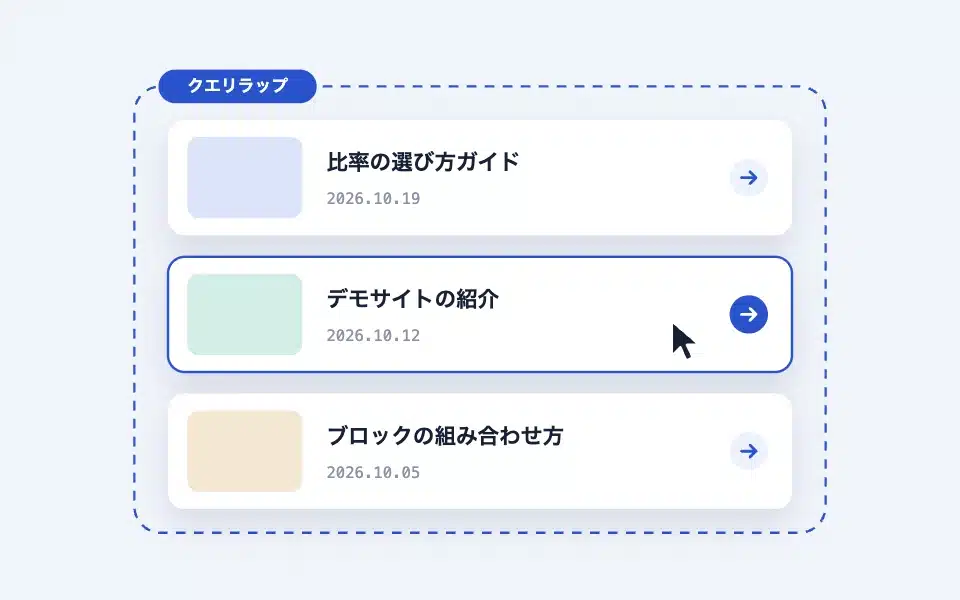
The query wrapper is standard in WordPress.Ciliary loopThis is the block to use within the "Post Template". Place each item in a card with the "Thumbnail, Title, Category + Date + Snippet" card, and click the entire card to make it a clickable area. Since the real link is only one in the title, screen readers won't have to read the same link to multiple articles, and text selection and button operations inside won't interfere (accessible card patterns). Unlike variable posts that create lists with individual blocks, query wraps are chosen when you want to use the query loop's filtering, pagination, and sorting as is.
Actual display
Since this manual is located on the site that is currently shitate pro blocks running, the following isReal blocks, not imagesHowever, please actually click on it, open it, and check the movement to confirm its functionality.
-

How to display a post list on a fixed page in WordPress is described in the post page...
-

Changes in update 1.8.0 1.8.1 fixes 1.8.…
-
Changing the font in WordPress is done through the font library style...
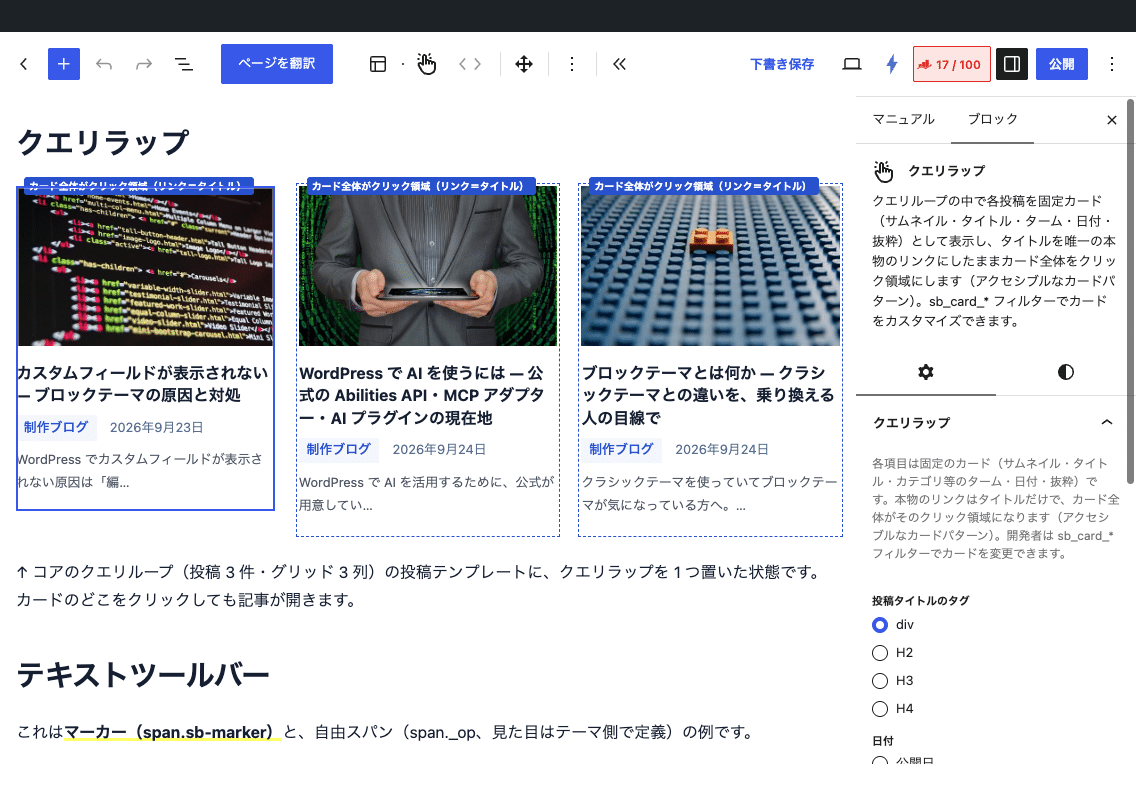
↑ The post template for the core query loop (3 posts, 3 columns in the grid) has one query loop placed in it. Clicking anywhere on the card will open the article.
Basic usage
- The coreCiliary loopAdd blocks and set the query (post type, number of posts, sort order, etc.).
- Delete the title and date blocks that are included in the "post template" by default, and replace them with the "shitate advanced blocks" in theQuery WrapPlace one of them.
- In the editor, cards are previewed in the actual post on Quireloop. In the sidebar, set the title tag, date, and new tab.
- The number of columns is determined by the "grid display" on the query loop side and the column number setting.
If placed outside the query loop, it displays "Please place this block inside the query loop", and it does not work.
Settings screen in the editor
Settings
- Tags for post title — div (initial value) / H2 / H3 / H4
- Date — Date of post/update (if no update, the date of post is used as the initial value)— Date of post and update— None. In the “Date of post and update” section, the “Post” and “Update” labels are displayed before each date, and only the date of post is displayed if there is no update. The presence of an update is determined by the display format, so reediting on the same day will not be considered an update.
- Open in a new tab
- Color (background and text), borders (rounded corners, color, thickness), and spacing (padding and top margin)—core settings can be used
The excerpt is always displayed (there is no "Show excerpt" toggle like in the variable post). If you want to remove it, use a filter.
The mechanism of the click area
- The real link is in the title
<a class="-link -primary">There is only one. - When JS is disabled, the link will not work.
::afterExpand the card to the entire field and make it a hit. - When JS is enabled, clicking on the card is transferred to the title link with a 200ms delay. Long-pressing (text selection) does not transfer; the link buttons and form elements within the card continue to function as usual, and Ctrl/⌘/Shift clicks and middle clicks open in a new tab.
- When you focus with the keyboard, the brand color outline appears on the entire card.
Reorganize cards with hooks
Same card as the variable post (.sb-cardSo,sb_card_args / sb_card_parts / sb_card_html Or combine both of them together, _query_wrap You can replace the query wrapper with a separate version for each block you are paired with (the list of configuration keys isFlexible PostsSee the article at).
// クエリラップだけ抜粋を外し、サムネイルもリンクにする
add_filter( 'sb_card_args_query_wrap', function ( $args ) {
	$args['excerpt']    = false;
	$args['thumb_link'] = true;
	return $args;
} );
Inside the query wrapperaction hookYou cannot place a query wrapper within a post template, but the action hook placed alongside the query wrapper will fire on the post ID of each item. You can display the contents of the field that is turned on to "Make available in query loop" for each item.
HTML and CSS output
<div class="sb-query-wrap is-js">
  <article class="sb-card is-query-wrap">
    <div class="-thumb"><img …></div>
    <div class="-body">
      <div class="-title"><a class="-link -primary" href="/en/…/">Title</a></div>
      <div class="-meta"><span class="-terms">…</span><time class="-date is-modified">…</time></div>
      <p class="-excerpt">…</p>
    </div>
  </article>
</div>
The ratio of thumbnails --sb-card-ratio(Initial value 1.618 / 1), rounded corners --sb-radiusThe image is slightly enlarged by hovering over it.
Points to note
- There are instances where using the fast-loading features of CSS (such as WP Rocket’s “Remove unused CSS”) can cause cards to appear blurry at 1px. Discard the plugin’s CSS from the optimization targets (see “Using the Fast-loading Plugin”).
- In 1.7.0, the class name is
sb-querywrapFromsb-query-wrapIt has changed to 1.7.0 to 1.7.1. There was a problem where the title was not visible, and this has been fixed in 1.7.2. - The initial value of the title tag became a div in 1.7.0. If you want to include it in the heading structure, please explicitly select H2 to H4.