

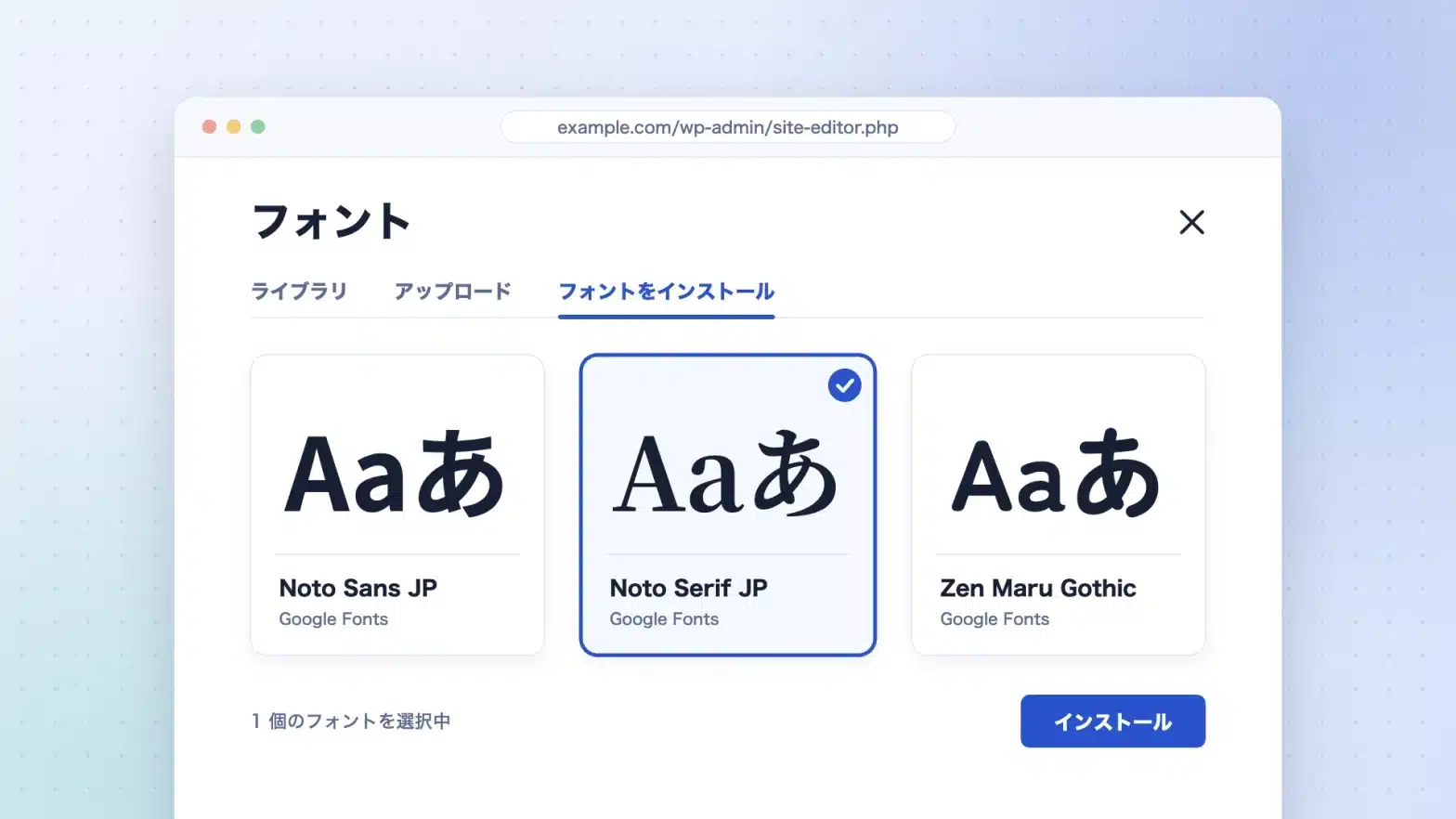
I want to change the font but I can't find it in the settings screen. Even though I changed it, it only works partially. The two places where I get stuck when changing the font in WordPress are divided into these two categories. In this article, I start with breaking down the reasons and compare the four methods for changing the font and text size along three axes: "Whether it won't disappear with updates," "Whether the person can change it after handing it over," and "Whether it's consistent across the entire site." The specifications are as of September 2026.
Two reasons why fonts cannot be changed
The "cannot be changed" situation contains two different states with different properties. Since the solutions are different, please first separate which one is the case.
I can't find the place to make changes
The location of the settings screen varies depending on the type of theme you are using. In classic themes, it is often located in the customization or theme-specific settings screen, while in block themes it is consolidated in the site editor (Appearance > Editor). Block themes It is explicitly stated that classic themes do not work in the site editor. If you still can’t see the screen after trying to operate as described in the explanation article, it just means that the type of theme that the article is intended for is different (What is a Block Theme — The differences from classic themes, from the perspective of those switchingSo, I am organizing the differences in the location of the settings).
However, the screen for adding the font itself has been unified in WordPress 7.0. The official documentation The Font Library It is a font library 7.0 and later are globally usable for both block themes and classic themes.It explains that the location is "Appearance > Fonts" in the management screen.
Even though I changed it, it only works on some parts/it goes back to the original state
This is not a matter of the settings themselves, but rather a problem with the way they are set up. There are three main reasons for this:
- It is set to only one block. The value specified by the block only applies to that block. If you want to change the entire site, you need to change it in the settings for the entire theme.
- The choice itself is determined by the theme side. The choice of fonts and text sizes is based on the theme.
theme.jsonI have the "Not listed" option. I can't choose the values that don't appear in the list. - The CSS I wrote disappeared with the update. If you write over the theme file directly, updating the theme will overwrite it.
In particular, the second option is often more effective for text size, so we’ll discuss it separately later in this section.
Four ways to change fonts in WordPress
There are four options in general. I am not assigning any preferences; I am simply listing what is needed.
Method A — Add it in the font library
From the Appearance > Fonts section of the admin panel, you can upload a font file or import it from Google Fonts. This feature is available in WordPress 7.0 and later, and can be used with either the Block Theme or Classic Theme. (Source: The Font Library mentioned above.) No code is required. The added fonts are added to the list and can be selected from the style settings.
Method B — Switching with the site editor's style
It is a method for deciding where to use a font that is already included in the site. The official documentation advises that when changing the fonts across the entire site, proceed to "Appearance > Editor > Styles." You can also specify blocks such as only headings or only paragraphs.The choices vary depending on the theme.(The same document also states that "the available options depend on the theme").
Method C — theme.json Write it down
It is a method of designing the fonts themselves that can be used in the theme.Global settings and typography settings for stylesAccording to the report, the font is settings.typography.fontFamilies Register with name(Display name),slug(identifiers used in CSS custom properties),font-family(CSS font-family The system font can be registered with only these three values; for web fonts, the fontFace Add the amount and specify the location of the font file.src There is theme.json You can write the relative path from it.
Method D — Writing CSS/Using font-related plugins
In CSS font-family There are two ways to specify them directly: adding fonts or installing plugins that are responsible for specifying them. Both of these methods allow you to add the specifications that the theme does not provide later. CSS changes whether it will be updated or not depending on where it is written, and if the plugin is removed, the specifications will also be deleted.
Which one should you choose — three decision criteria
The answer will vary depending on the case and the operational structure. Let’s not be fixated on one thing; let’s consider it from three angles.
| criterion for judgment | A: Font library | B: Switch between styles | C:theme.json | D: CSS/plugins |
|---|---|---|---|---|
| Will it disappear with the update? | It won't disappear (data from the site) | It won't disappear (data from the site) | If you rewrite the theme itself, it will disappear. | Depending on the placement. The plug-in stops when it is removed. |
| Can the person change it after delivery? | Can be changed (only the management screen) | Can be changed (within the range provided by the theme) | It cannot be changed. Editing the code is required. | Many cannot be changed. If it's a plugin, you can manage it from the admin panel. |
| Will it be available across the entire site? | Just increasing the number of fonts; the final decision on the intended use will be made based on B. | Matches. Both the whole and the block-by-block specifications are available. | It fits. You can design the choice itself. | Only within the specified range. Exceptions will increase as you add more text. |
If we look at it from the reader's perspective, it looks like this:
- If you make it yourself and operate it yourself, it's A + B. It is completed entirely through the admin panel, and even if you update the theme, the settings remain intact.
- If you create it with the assumption of handing it over to someone, you should decide on C first and leave A + B as an operation after handing it over. Frame the choices
theme.jsonIf you decide on that beforehand, the chance of it collapsing at the destination will be smaller. Howevertheme.jsonSince it is a file for the theme itself, the prerequisite is to have it in a custom theme or a child theme. - D is limited to specifying items that cannot be delivered through A-C. If you add CSS one by one, it becomes difficult to track where and what is working later on.
I would also like to mention the licensing of the fonts themselves. For web fonts, the terms of distribution and use are specified for each font. The official documentation also explains this in the upload instructions.To confirm that you have the right to use and distribute that fontI am looking for it (the source is The Font Library mentioned above).
Adding fonts to a font library — the minimum steps
Method A can be completed in the Appearance > Fonts section of the admin panel. The screen is divided into three tabs, each with a different role (all of the following sources are cited in The Font Library above).
| Tabs | Roles |
|---|---|
| Library | Check and manage the fonts currently being used. The list includes the fonts provided by the theme, the fonts uploaded by you, and the fonts imported from Google Fonts. |
| Upload | Insert the font file in your hand. |
| Installing fonts | Choose from Google Fonts and add it |
The formats that can be uploaded are .ttf / .otf / .woff / .woff2 There are four of them.And the official documentation explicitly states in this description: "Please confirm that you have the right to use and distribute that font." Since the files you have may not necessarily meet the conditions for being used on the website, please be sure to check this.
If you want to use Google Fonts, you first need to allow access to Google Fonts from your site. After granting permission, you can search for fonts, select the combination of font size and style you need, and install them.WordPress downloads the selected font file and hosts it on your site.Google doesn't load the information every time you view it; you can revoke the permission at a later time from the same screen.
The added fonts are listed in the "Libraries" tab, and can also be selected from the style settings. If you want to reduce the number of fonts you use, you can toggle the option on/off in the same tab or delete them.
By the way, what we’ve been talking about so far is “incorporating the font into the site.”The person responsible for method B decides where to use the font that has been inserted.It is.
When the size of the characters is not aligned — font sizes Fluid typography
There is a clear cause behind the problem of "the font has been changed, but the text size just doesn't work as I expected."The size options are based on the theme. theme.json That is the decision.
According to the documentation for the typography settings mentioned above, the default character size registered by WordPress is four stages.
| Name | 値 |
|---|---|
| Small | 13px |
| Medium | 20px |
| Large | 36px |
| Extra Large | 42px |
If only these four options appear in the editor's text size field, it means that the theme has not registered its own size. To change the options: settings.typography.fontSizes I will write (the following is theme.json Excerpt from).
{
	"settings": {
		"typography": {
			"fluid": true,
			"fontSizes": [
				{ "name": "Small", "slug": "small", "size": "14px" },
				{ "name": "Medium", "slug": "medium", "size": "18px" },
				{ "name": "Large", "slug": "large", "size": "24px" },
				{ "name": "Extra Large", "slug": "x-large", "size": "36px" }
			]
		}
	}
}
There are also three settings you might want to know about:
- Fluid typography
settings.typography.fluid) is by defaultfalseIt is.trueIf you do that, the registered size will beclamp()It replaces it and stretches according to the screen width.The lower limit is set by default14pxTherefore, the defaultsmallSizes that fall below the lower limit (13px) are excluded from this stretch. customFontSizeIt is by defaulttrueIt is.In the setting that allows users to input numbers that are not available as options directly,falseIf you do that, the input field will disappear.- When the custom character size exceeds five, the UI changes from a button arrangement to a dropdown.Increasing the number of options doesn't necessarily make it easier to choose, so it's best to decide on the number of stages in advance.
The concept that theme-level settings determine the choices on the editing screen isn’t limited to fonts alone. The same concept applies to other elements as well.Custom Fields Not Displaying — Causes and Solutions for Block ThemesBut we are handling it.
Before choosing a font — decide first on how to use it throughout the site
If you decide first what font to use, rather than wondering how to make everything look uniform, the rest of the work will be much easier.
The method of specifying one location at a time is fast on the first page, but the more pages there are, the more exceptions appear. The relationship between the heading and paragraph size, and the relationship between the text size and margins, varies from page to page. On the other hand, if you keep the size and font preset and choose from there, the whole thing will be in alignment unless you go out of your options.theme.json の font sizes や fontFamilies This is the mechanism for that.
The way presets are determined can vary depending on whether they are designed by the user or selected from a pre-designed set.
- When designing it yourselfYou can freely decide the stages and ratios according to the requirements of each case. However, you must decide the number of stages, the values for each stage, and the spacing between them yourself, and leave them as is.
- When choosing from a ready-made designThis saves the hassle of deciding, but it means that it has to fit within the prepared framework. If the request to be removed from the framework is in the case, it will eventually have to be written into it.
An example of the latter is a configuration where the theme has a scale. For example shitate, if you choose one of the eight type scales (from short 2 degrees to golden ratio), the text size and margins are coordinated to align the whole design. The scale is generated in a chain with the base value set to 16px and the initial value for the ratio set to 1.25. The text and margins are unified in 8 stages (xxs to xxxl). Which one is better depends on the project’s freedom and who will touch it after delivery.
Changing the fonts in WordPress can be divided into three parts: adding a font (method A), deciding where to use it (method B), designing the option itself (method C), and filling in the gaps outside the framework (method D). If you feel like you can’t change anything, first try separating the issues into whether the location is not found or the settings only apply to a certain part. Then, whether it will not be lost in the update or can be changed by the person after the handover, and whether it will be consistent across the entire site. By applying these three criteria, you can narrow down the choices.
shitate It is a block theme from the 100% GPL,WordPress official directoryYou can try it for free. For more information,Official websiteSee
