

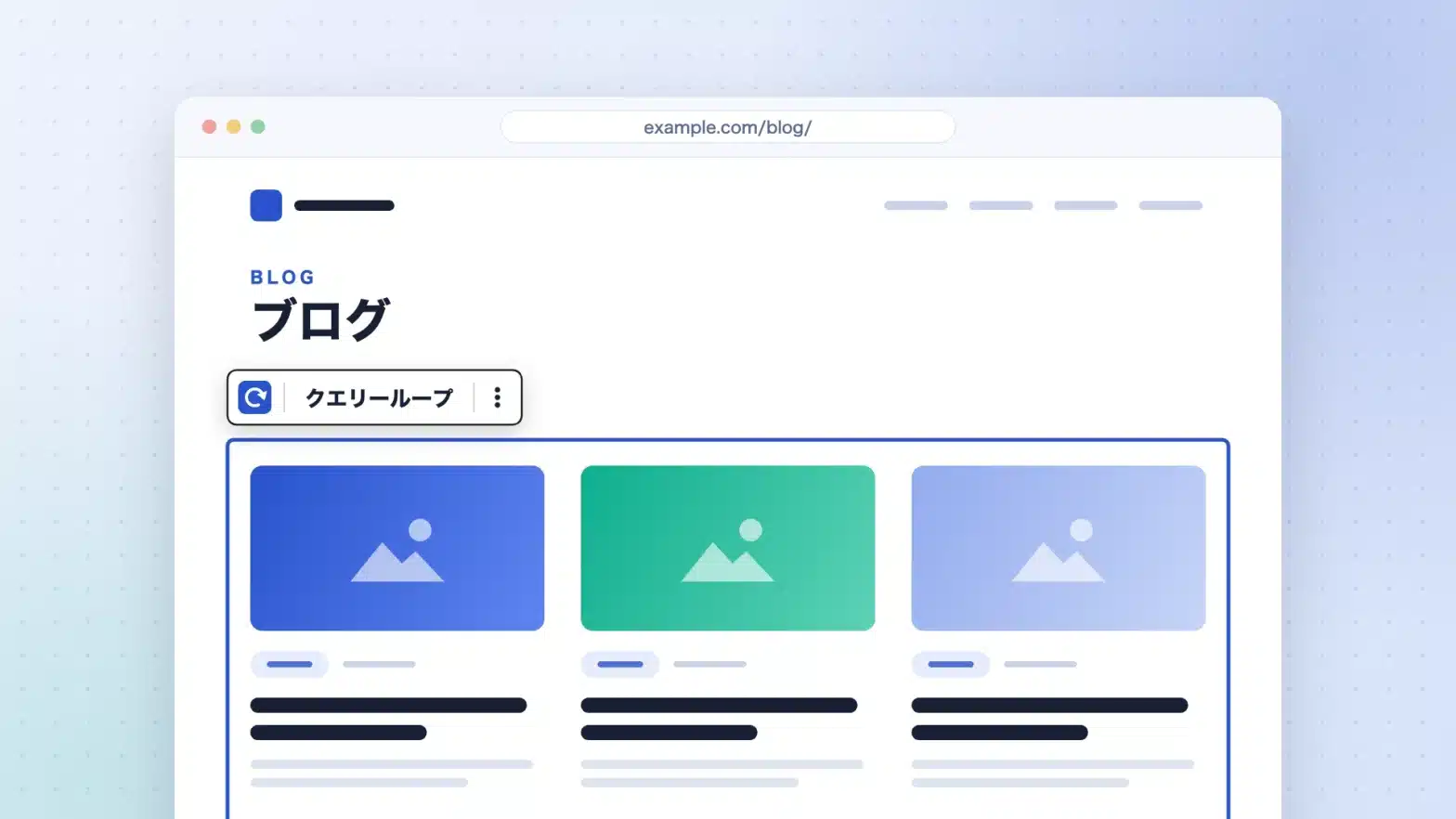
I want the list of posts to appear on a fixed page other than the home page. There are three ways to meet this requirement; choosing one of them will change whether it remains after changing the theme and whether the person can change the sort order after handing it over. In this article, I will list the three options and then address the most common causes of this problem, which is that nothing appears even after placing it. The specifications are as of September 2026.
Three ways to display a post list on a fixed page
The requirement to "display a list of articles on a fixed page" is divided into three different methods based on their nature. Since explanatory articles often only deal with the third method, we will first check the overall situation.
The choices are also influenced by the type of theme. The official WordPress documentation Block themes It explicitly states that in the Classic theme, full site editing (the site editor) does not work (the location of the settings changes depending on the theme).What is a Block Theme — The differences from classic themes, from the perspective of those switchingI am organizing them).
Method A — Specify it in the post page in "Settings > Display Settings"
This is a method that uses the mechanism built into WordPress. The official documentation Settings Reading screen According to the developer, by setting the homepage display to "fixed page," you can choose a fixed page for the homepage separately from the fixed page for displaying posts (the post page). There is no need for code or block placement.
However, there are two restrictions. The first is that the same document specifies thatYou cannot specify the same fixed page for the homepage and the post page.Another point is thatThe templates assigned to the post page are ignored and the theme is applied to the entire page. index.php(home.php If there is one, that one controls the display of the post.That is the point (from the same document).
In other words,The text written on the fixed page specified in the post page will not be displayed.Method A is not suitable for the requirement of "writing a description on a fixed page and then arranging the list below it." This is the dividing line between methods A and B.
Method B — Placing the query loop block
Official documentation Query Loop block It describes the query-loop block as ”an advanced block that displays posts based on specified parameters,” and describes it as “like a PHP loop without the code” (similar to a PHP loop without code). It can be placed in the fixed page body and the template, and you decide “what, how many, and in what order” to display in the block settings instead of the code.This is the only way to mix the article and the list on the same fixed page.
Method C — Writing PHP
This is a way to create your own loops. In the classic theme, page-{slug}.php The method of creating dedicated template files for fixed pages like these and then writing code to retrieve posts has been used for a long time. Many of the explanatory articles that appear in search results follow this method.
The block theme changes where the writing takes place.Template hierarchyThe documentation for the block theme template is .html It is a file,index.html It explains that only the required template is required. Since the template is HTML, PHP is not required. functions.php It moves to the side of the unique block and shortcode.
Which one should you choose — three decision criteria
There is no right or wrong choice. The answer depends on what you prioritize, so please decide on the axis first.
| criterion for judgment | A: Specified on the posting page | B: Query loop block | C: Write PHP |
|---|---|---|---|
| Whether it remains when changing the theme | Remaining (site-side settings) | Remaining (if placed on a fixed page, on the post data side) | Depending on the location. If you write it in the theme, it won't be left behind. |
| Can the person change it after delivery? | The number of items can be changed from the management screen. | You can change the sort order, number of items, and filtering settings from the block settings. | Code editing is required |
| Will it meet the requirements? | Only one list of fixed format | To the extent of the setting item | It can also meet requirements that are not included in the settings. |
When applied to a situation, it can be divided into the following categories:
- It would be nice to have a list of blogs that you can manage yourself.Method A is the shortest one. If you want to change the details, you can proceed to the editing on the template side (Method B).
- Hand it over to someoneMethod B works. Changing the order or the number of items is all done with just a block configuration without touching the code.
- There are requirements that are not included in the settings.We will consider method C. However, the first step is to verify that the setting item is indeed not present.
Methods B and C are not exclusive. Most of the lists can be combined into blocks, and you can also allocate only the missing parts to be coded.
Outputting with a query loop block — the minimum steps and the reason why it doesn't work
Proceed with method B until it is displayed as shown in the image.
Place the query loop block
The official documentation lists two additional methods: opening the block insertion tool (+), searching for it in the search field, and inserting it into a paragraph block. /query loop Enter the address and press Enter.
If you add it, two choices will appear immediately.Choose (Select from the theme pattern)と Start blank (Start from scratch)It is.The nested blocks included from the beginning change depending on the pattern chosen.Start blank is also a form where you choose from different variations of nested combinations. Either way, you can add or subtract blocks later.
Change the query type from "Default" to "Custom"
This is almost always the cause of "no results even after placing a block" and "not being able to find the post type or filtering settings."The following is written in the Query type section of the official documentation:
The Query type is set to Default automatically which means WordPress will otherwise rely on the template being used to determine what posts appear. To view a list of posts on a page, change this query type to Custom.
(The query type is automatically set to "default." This means that WordPress decides which posts to display based on the template used for the display. To display a list of posts on a static page, change this query type to "custom.")
In other words, the default "default" is:It inherits the context of the template in which the block is placed.It's a matter of configuration. If you place it in the archive template, it will work as expected; however, the fixed page is intended to display one fixed page at a time, so there is no one to pass it on to.
The same caution is repeated throughout the documentation regarding customization. It advises that when you can't see the post types or filters, switch to a custom option.The setting isn't "not there"; it just doesn't appear when you set it to "default."It is.
When you select "Custom," the following five settings appear:
- Post type — Posts and fixed pages, etc. If your site has custom post types, those will also be listed.
- Order of appearance — New order (default) / Old order / Alphabetical order A→Z / Alphabetical order Z→A
- Top-fixed posts — included (default)/excluded/ignored/only this
- Display — Number of items per page, offset (how many items to skip from the beginning), maximum number of displayed pages. Some are hidden by default and can be accessed from the three-dot menu next to "Display."
- Filters — By default, nothing is added; select (+), and add it. There are settings to exclude taxonomy (categories and tags; you can also exclude), author, keywords, format, and the current post; if you set the post type to fixed page, it changes to Author, Keywords, and Parent Page.
Organize the blocks that will fit into the middle
The query loop is composed of nested elements. The official documentation describes the query loop as follows:Post templates/Page numbering (optional)/No result (optional)We explain them in four parts.
- Post templatesThis is the part that repeats for each item. The title, thumbnail image, excerpt, date, etc. included in it are repeated only for the number of posts. You can switch between list view and grid view from the toolbar.
- Page numberingThis is for moving when the results are on multiple pages. If you don't need it, you can remove it and return it later.
- No resultsThis is a message that appears when there are no posts matching the criteria at all. The official documentation is available here.It can be deleted, but it is recommended to keep it.I'm doing that.
Furthermore,The post title and cover image are not automatically linked in any layout.Enable link settings in each block. "Inner block using content width"If you turn it off, the nested blocks will expand to the width of the query loop.
When insufficient with query loop — decision to switch to PHP
Method B does not go as far as you might think. If you write "can be done with a block," you'll end up backtracking after you've filled in the requirements, so let's draw a line.
The judgment is simple:Whether the action is included in the query type "custom" settings (post type/sort order/top-fixed post/display/filter)I'll look at that. If it's not included, that's the part of the code that the person writing the code is talking about.
There is one restriction that is explicitly stated in the official documentation: the keyword filter. The Filters section of that document states:If you enter multiple keywords, the results must match all of them; using this filter, you cannot get a result that matches any of them.It says "A or B-containing posts." In other words, the "A or B-containing posts" condition cannot be combined.
The order of the results is also determined by the four options above; if you want to sort by criteria that are not included in this list (for example, by the order of values assigned by yourself), setting them is not enough.
Also, the official documentationThe filters you can use vary depending on the post type, theme you selected, and plugins installed on the site.It says that. Please check the actual management screen before specifying the required filters.
In other words,If the configuration item contains the code, there is no particular reason to write it.First, change it to "Custom," and then you can judge based on the five settings; this will save you from having to go back and forth a lot.
Before creating a list — whether in a template or on a fixed page
Finally, a little bit about the design ahead of it.Where to keep the listIf you decide on one first, it will be easier to make subsequent changes.
- Have it on the template sideEdit the template in full site editing mode and place the query loop there. This saves you from having to make changes in one place.Template hierarchyAccording to the documentation, the display of the posting page (the fixed page specified in "Settings > Display Settings") is
home.htmlIf not,index.htmlMethod A: This is where you can adjust the appearance. - Have it on the fixed page sidePlace the query loop in the body of that static page. This is for when you want to insert text before or after the list on that page. If you create the same structure on another page, the number of modifications will increase by the number of pages.
The general guideline is "whether there is a plan to place the same list on the second page as well." If there is a plan, it is sufficient to do it on the template side; otherwise, it is sufficient to do it on the fixed page side.
The extent to which the theme is used also affects it. For example shitate,index や page The core block is simply composed of templates such as theme.json This design is based on selecting from a preset. Since we do not allow you to write your own CSS, the process of aligning the appearance of the list is also influenced by the selection of the preset.
There are three ways to display a post list on a static page: leaving it to the existing mechanism (A), setting it up with a block (B), or setting it up with code (C). Whether it will remain after changing the theme or can be changed by the person receiving the delivery depends on the requirements. By applying these three criteria, you can narrow down the choices. If you still don’t see anything after placing the post, check the query type.
shitate It is a block theme from the 100% GPL,WordPress official directoryYou can try it for free. For more information,Official websiteSee
