
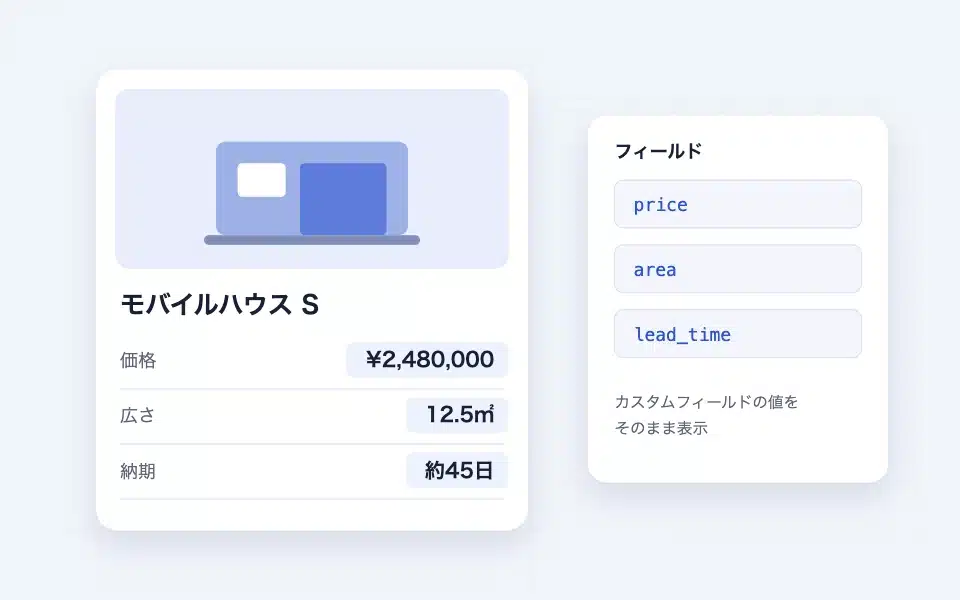
Field blocks are "named containers". The blocks placed inside them areIt is not displayed in that location.of the same nameAction hook blockThe output is displayed at a specific position. It is used when you want to display different content (such as the catchphrase, price, and contact name) for each article in a design determined by the template.
Actual display
Since this manual is located on the site that is currently shitate pro blocks running, the following isReal blocks, not imagesHowever, please actually click on it, open it, and check the movement to confirm its functionality.
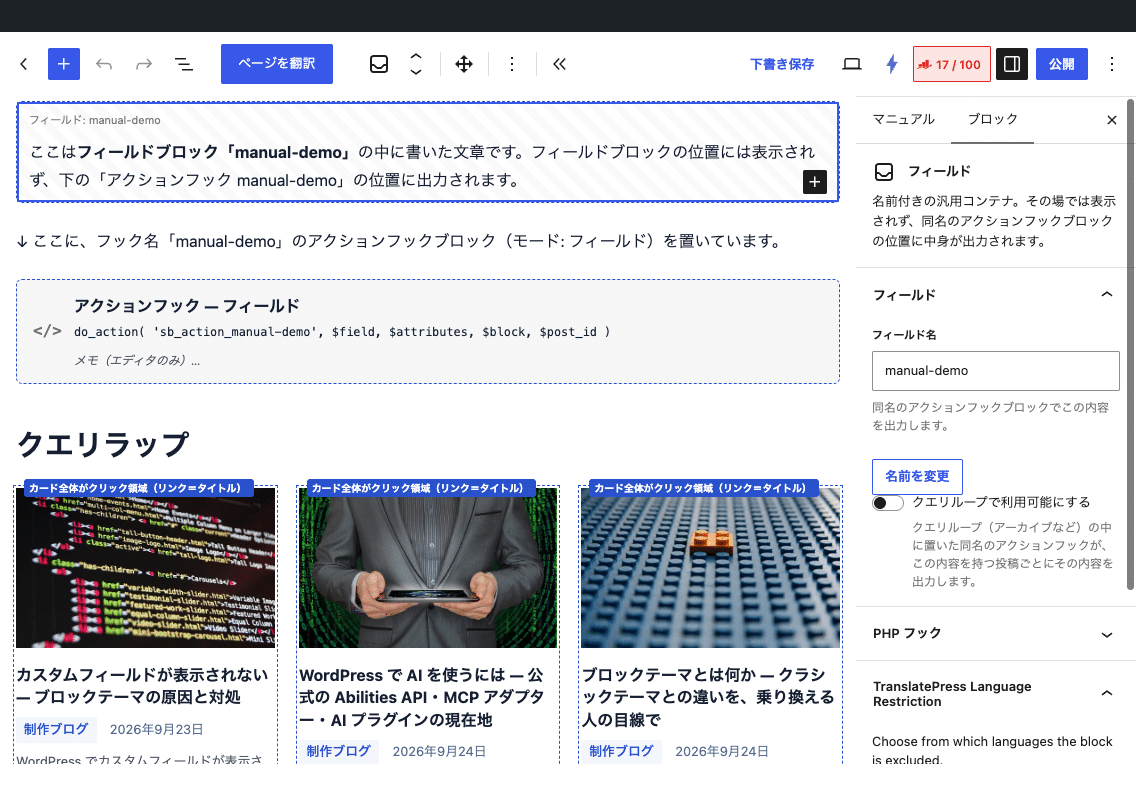
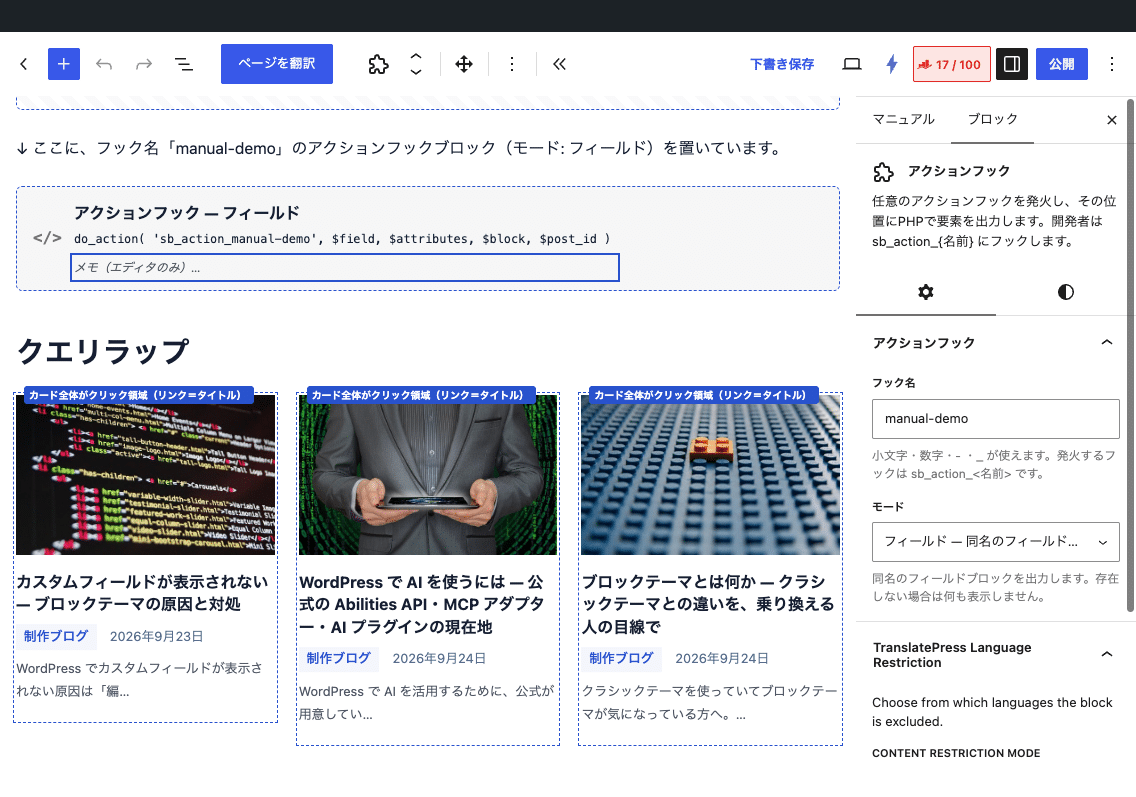
↓ I am placing the action hook block for the "manual-demo" hook (mode: field) here.
Here isField block "manual-demo"This is the text written inside the field block. It is not displayed in the field block position, but is displayed in the "Action Hook manual-demo" position below.
What you can do
- Display the content written in the body in a different location on the template (directly under the header, in the sidebar, in the footer, etc.).
- For each card in the list of articles (query loop), display the contents of the fields in each article.
- Process the content using PHP hooks and display it
Basic usage
- From the "shitate advanced blocks" of the block insertion toolFieldAdd the
- In the "Field name" section of the sidebar,Field nameEnter the number. Only the following numbers are usable:Lowercase English numbers and
-_Only that (same limitations as the Action Hook). - In the block, insert the content you want to display using ordinary blocks (paragraphs, images, lists, etc.).
- In the position you want to display it in,Same namePlace the Action Hook block (mode "field"). If placed in the template, it will be in a common position for all articles; if placed in the body text, it will appear in a different position within that article.
In the editor, the field is displayed with "Field: Name" in the field frame. In the front end, nothing is output in the field block position.
Settings screen in the editor
Settings
- Field name — The action hook block with the same name will be the output destination. If you enter a name,Lock to prevent misusePress "Change name" to confirm, and the lock will be removed. You can lock again with "Lock name".
- Available in Query Loops (to be used in query loops) — When enabled, the same name action hook placed in a query loop (including query wraps) such as archives,From the posts for each itemThis field is extracted and output. Fields that are turned off are not visible in the list (the functionality on a single page remains unchanged). When turned on, the editor is marked with a "Query Loop" badge.
- PHP hook panel — When you enter a name, it is used for that field.
add_actionA thumbnail of the image will appear. With the "Copy" button, it will be copied to the clipboard and pasted into functions.php.
Processed in PHP
There is no filter in the field itself. If you want to change the output, you need to hook the action hook that is the output destination. sb_action_{name} Use the first argument. $field The HTML for the field contains:
add_action( 'sb_action_catch', function ( $field, $attributes, $block, $post_id ) {
// $field = このフィールドの HTML。echo すると出力を置き換える。
echo '<p class="catch-copy">'' . $field . ''</p>';
}, 10, 4 );If nothing is echoed, the field's contents are output as is, so there is no need to write PHP if decoration is not required.
The mechanism (Things you should know to avoid confusion)
- The destination is the body (post_content)However, custom fields (post meta) are not saved. Therefore, the field content remains in the revision as with regular blocks, and is also subject to search.
- In a single page, all the fields in the text before the page is drawn are first collected and then passed to each action hook. Therefore:The relationship between the field and the action hook is not relevant.(Even if there is a field behind the hook, it will still be displayed).
- Within the query loop, we collect only those fields from the post body of each item that are enabled to be used in the query loop. Since the analysis of each post is performed only once per request, using the same field in multiple hooks does not increase the load.
- The fields of password-protected posts do not output while they are protected.
Common uses
- Templates for customer feedback and product introductionsFor each article, place fields such as "company name," "person in charge," and "a few words," and arrange the action hooks with the same name in the template's layout. The editor only needs to fill in the fields in the body text, and the design won't be compromised.
- Catch copy in the article listPlace the fields that you have turned on to be available in the query loop in each article, and place the action hook in the card of the list template.
- Different header notifications for each pagePlace the action hook directly below the header of the template, and place the same name field only in the body of the required page. Pages without fields will not display anything.
Points to note
- If you place multiple fields of the same name in one post, the ones you collected later will take priority. Please keep the same name for one post.
- If you change the field name later, you also need to change the action hook on the output destination. That’s why the name is locked.
- The field is not displayed in the field itself, so reading the text alone makes it seem like it has disappeared. Please tell the editor where it is by displaying the field's "Name" in the editor.