
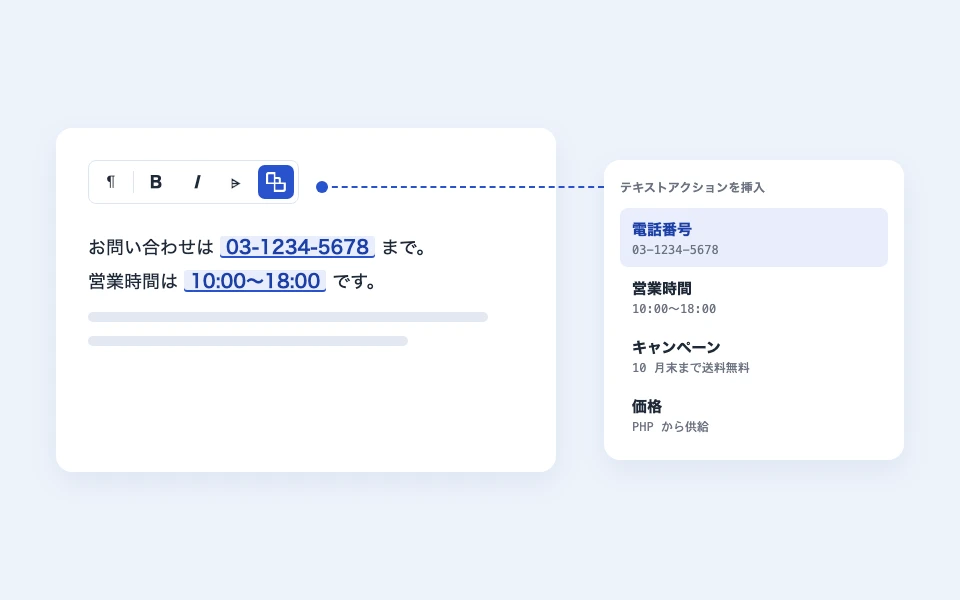
Text actions are a mechanism that allows you to register names for frequently used strings (phone numbers, business hours, campaign text, warnings, prices, etc.) and call them from the editor's text. Only the reference to "which text action" is stored in the body, and the string itself is inserted when it is displayed. Therefore, if you change the settings, all places where the string is used in the site will change at once.shitate pro blocks Added in 1.9.0.
Actual display
This manual is shitate pro blocks located on the site that is running, so the next paragraph isReal text actions instead of imagesHowever, the body of the document only contains references; the strings are inserted from the settings.
→ This string is inserted from the text action "Manual Demo" (if you change the setting, this location will also change together).
In times like this
- You have multiple pages with the same information such as phone numbers, addresses, and business hours, and you don't want to have to go through the trouble of searching for it every time you make a change.
- I want to consolidate and replace the limited-time campaign text after it ends.
- I want to display the calculated values in PHP in the body of the document, such as prices and stock levels (discussed later under "Supplying from PHP").
- I want to unify the standard notes in a uniform manner without changing the wording.
Register
- Open the "shitate pro blocks()" (under "Tools") in the admin panel sidebar, and select the "Text Actions" tab.
- In "Add Text Action", add more rows and enter the name, ID, and string.
- Press "Save."
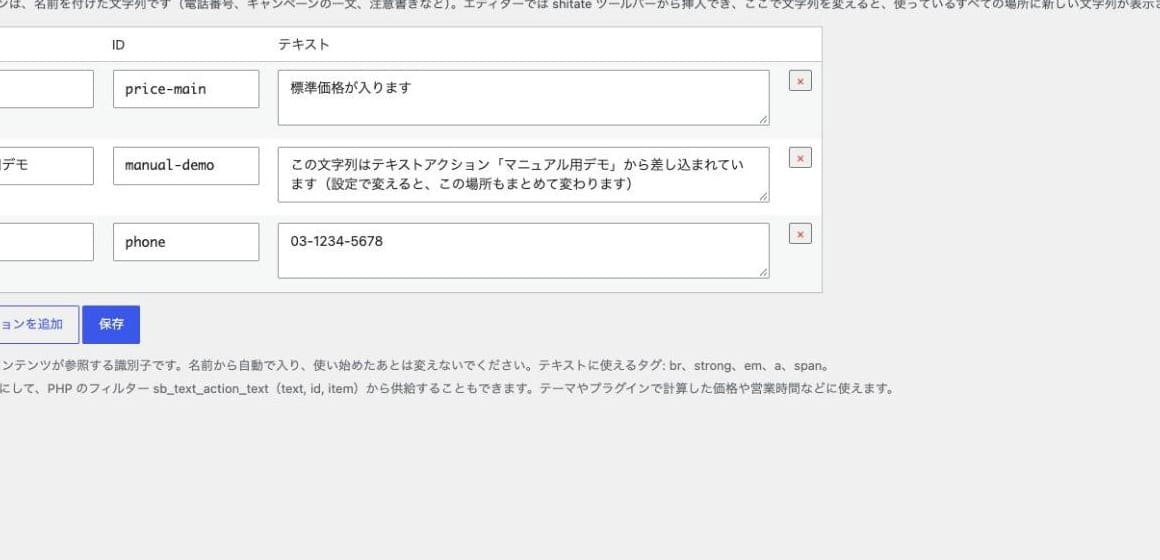
Name, ID, and string
- Name:Name displayed in the list of editors. You can use any Japanese name.
- ID: The identifier referred to in the text. It is automatically entered from alphanumeric names, and in Japanese names it is a short auto ID (
ta-xxxxxx)If you want to add it yourself, use alphanumeric characters, hyphens, and underscores in half-width characters.Do not change the ID you started using.If you change it, the string will no longer appear in the location that references that ID. - String: The content to be displayed. Line breaks are
brEmphasis isstrong/emThe link isaThe decorationspanIt can be used. Other tags are removed when saved. You can also leave them empty and have them supplied by PHP.
Insert it in the editor
- In a block where you can type text, such as paragraphs, place the cursor where you want to insert it.
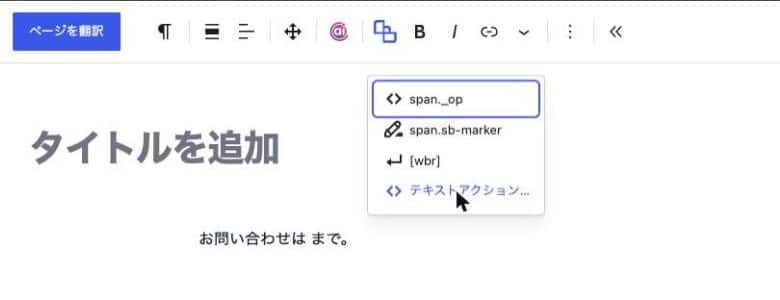
- Select the shitate pro blocks button in the toolbar (bold text; link array) → "Text Actions..."
- Click the desired item from the list. You can filter by name or string.
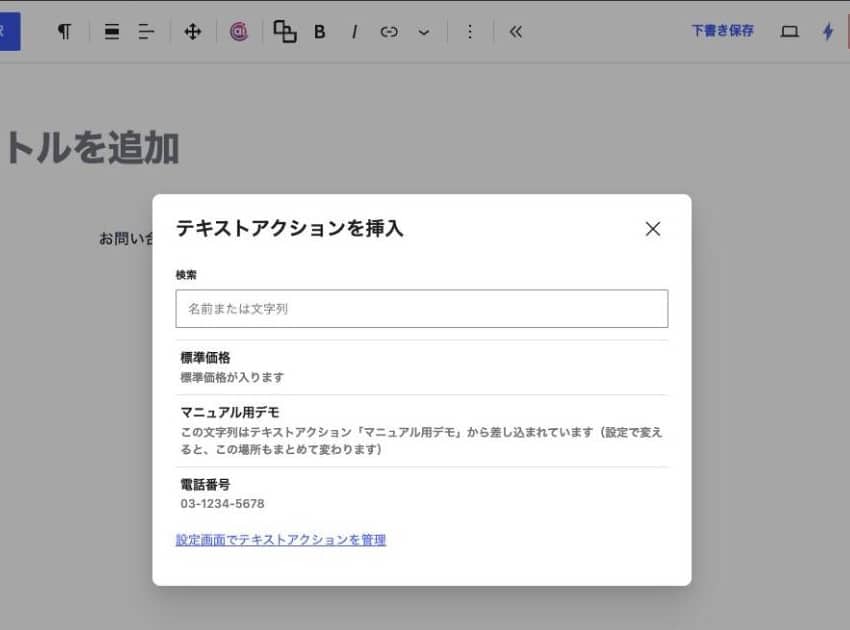
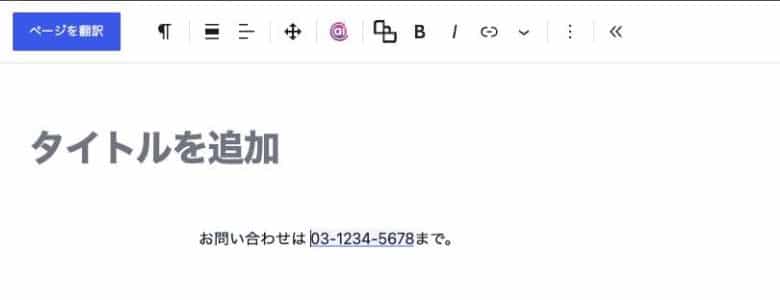
The inserted part is displayed in a colored underline on the editing screen. This part is treated as the same "chunk" as the inline image, so you cannot change the text inside or delete just a part of it. If you delete it with the Backspace key or Delete key, it will be deleted along with the reference and the string in that location will be removed from the published page as well.
Change the string from the editor
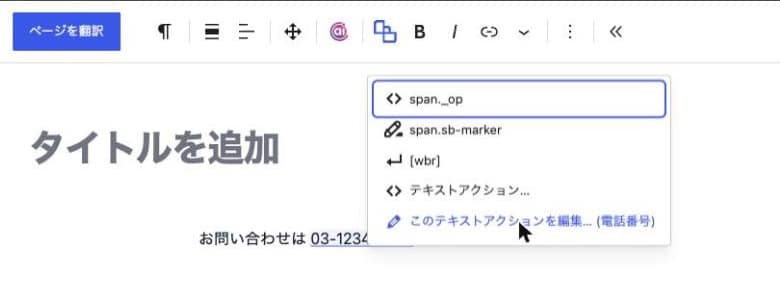
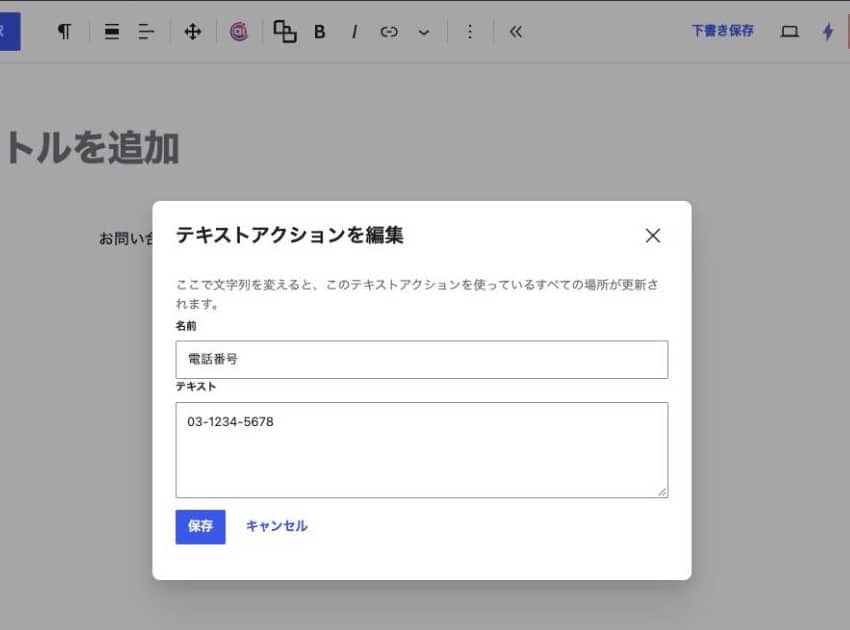
When you place shitate the cursor over the inserted section and select "Edit this text action" from the toolbar, you can change the name and text on the fly. When you save the changes, they are also reflected in the settings and the same reference within the open page is immediately updated. Other pages will display a new string when you refresh them. This edit button does not appear for items supplied by PHP.
How the display works
The following empty values are stored in the body of the document: span That's all. When displayed, the plugin inserts the current string into it.
<!-- 本文に保存される形(文字列は含まれない) -->
<span class="sb-text" data-sb-text="phone" data-sb-label="03-1234-5678"></span>

<!-- 表示時(現在の文字列が差し込まれる) -->
<span class="sb-text" data-sb-text="phone">03-1234-5678</span>sb-data-labelIt is for display on the editing screen; it contains the string that was inserted at the time of insertion. It is not used for front-end display.- If you are referring to an unregistered ID, just output the string from the save time.
- Replacing takes place in all places that are drawn with blocks (the post body, templates, template parts, and sync patterns).
- On sites that use page caching, you need to delete the cache after changing the string.
Supplied from PHP
Register the string as empty and filter it sb_text_action_text When you return the value, the value is displayed. It is used to output the calculated value or the value taken from an external source in the middle of the document. The return value also has the same tag restrictions as the configuration screen. Items supplied by PHP are displayed as "Supplied by PHP: Current value" in the row of the configuration screen, and "Supplied by PHP" in the list of editors.
// 空のテキストアクション「price」(ID: price)の文字列を PHP で供給する
add_filter( 'sb_text_action_text', function ( $text, $id, $item ) {
	if ( 'price' === $id ) {
		return '¥' . number_format( get_option( 'my_price', 1980 ) );
	}
	return $text; // ほかの項目は設定の文字列のまま
}, 10, 3 );
Filters and the REST API
| Name | Use |
|---|---|
sb_text_actions(Filter) | Process the entire list (an array with IDs as keys; each element has an id, name, and text). For adding, deleting, and rearranging items. |
sb_text_action_text(Filter) | Swaps one string with another. The arguments are an array of strings, IDs, and items. |
sb/v1/text-actions(REST) | GET lists the items (editing permissions for posts), POST updates one item (for administrators). It uses the editor's editing dialog. |
Points to note
- Save location is optional
sb_text_actionsTherefore, please keep this option with you when moving the site or staging it for production. - The reference to the text action is inserted within a block where you can type text (such as a paragraph, heading, or list). It is not placed alone as a block.
- Version 1.9.0 and earlier do not have this feature. In older version plugins, the span for the reference remains empty.