
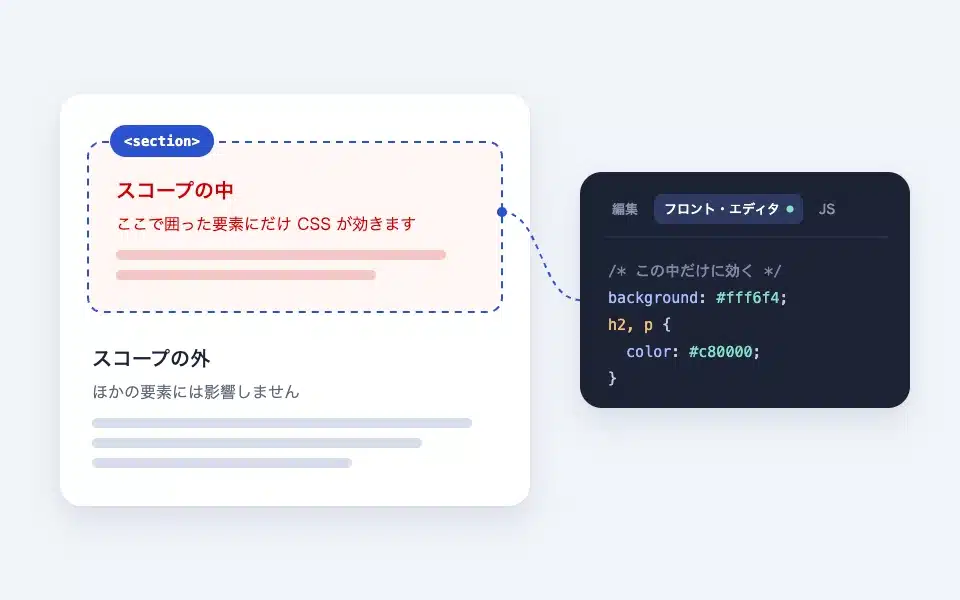
The scope is a group-like block where you can select HTML tags that surround the content using radio buttons. You can choose from standard things like div / section / article / main, up to nav / aside / hgroup / header / footer. Additionally,CSS that only works in this block And,A JS that is executed only once immediately after the block is executed. You can write it with tab switching. The biggest feature is that you can add decorations and small movements that do not affect other elements without touching the theme's CSS.
Actual display
Since this manual is located on the site that is currently shitate pro blocks running, the following isReal blocks, not imagesHowever, please actually click on it, open it, and check the movement to confirm its functionality.
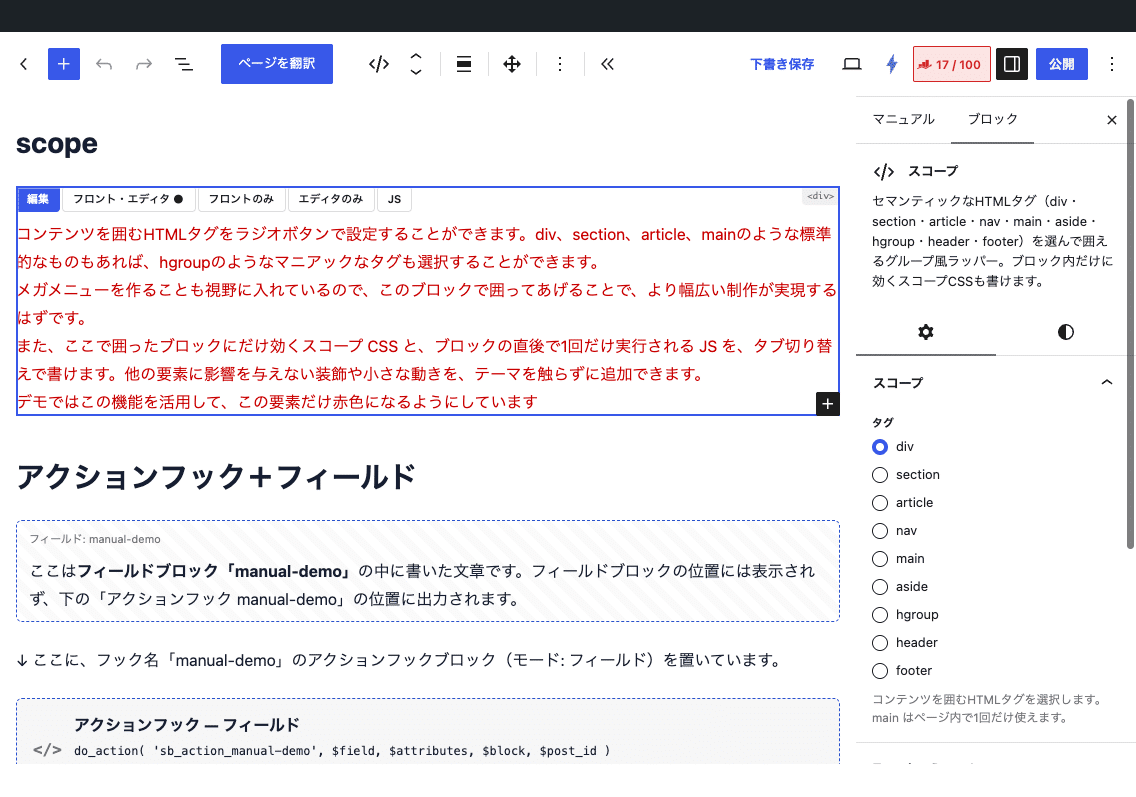
You can set the HTML tag surrounding the content using radio buttons. You can choose standard ones like div, section, article, and main, as well as more obscure tags like hgroup.
Since we are also considering creating a mega menu, enclosing it in this block should enable a wider range of development possibilities.
Also, you can write scoped CSS that only affects the block enclosed here, and JS that runs only once immediately after the block, using tab switching. You can add styling and small animations that don't affect other elements without touching the theme.
In the demo, this feature is used to make only this element red.
Basic usage
- From "shitate tag blocks" scope Add a block and insert any block you want inside it.
- Select the tag you want to wrap in the "Tags" section of the sidebar (the default value is div.main, which is one tag per page). In the editor, the tag name you selected appears as a badge on the top left of the block.
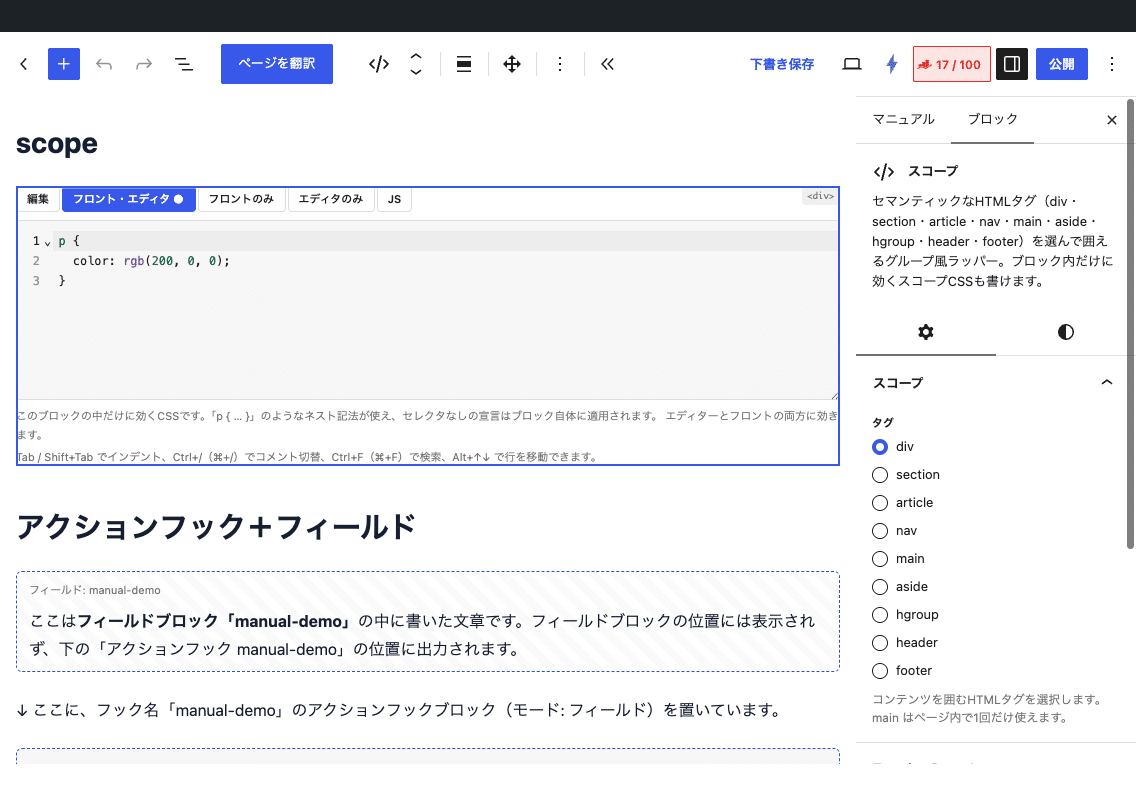
- When you select a block (or a child block within it), a tab labeled "Edit / Front Editor / Front Only / Editor Only / JS" appears above the block. When writing CSS or JS, switch to this tab. Tabs with values are marked with a "●".
Settings screen in the editor
How to use tabs
- Front Editor — CSS that only works on this block. It works in both the editor and the front end. Nested nesting is supported, and declarations without selectors apply to the block itself.
- Front only — It’s the same CSS scope, but it only works for the front end and isn’t applied to the editor. The specifications that interfere with editing, such as hover effects, animations, and hiding elements, are listed here.
- Only the editor — It’s a CSS effect that only works for editor previews; it isn’t outputted to the front at all. It’s used for specifying things that make it easier to edit, such as borders, placeholders, and extra space during typesetting.
- JS — It is executed only once immediately after the block on the front. The block element is a variable
theIt is passed as such within the editor; it is not executed within the editor.
/* 「フロント・エディタ」タブに書く例: ブロック自身の背景と、中の段落の色 */
background: #fffaeb;
padding: 24px;
p {
	color: #c80000;
}

/* 「フロントのみ」タブに書く例: ホバーで少し浮かせる */
transition: translate .2s;
&:hover { translate: 0 -4px; }
Example of writing in the 'JS' tab: Adding click handling to a button within a block
el.querySelector('button')?.addEventListener('click', () => {
el.classList.toggle('is-open');
});How scopes work
- Unique classes are applied to blocks that contain CSS or JS code.
sb-css-xxxxxxIt will be applied automatically. The CSS is in the browser's native CSS nest..sb-css-xxxxxx { … }It is included in the category of "block", so it does not work outside the block. - When you duplicate a block, the ID is automatically reset.
- CSS is
<head>の<style id="sb-scope-css">The output is compiled into one file, and the JS is compiled into a footer. Since there are no more elements next to the block,:first-childIt does not affect the grid columns. - CSS is sanitized.
@importと<The backslash has been removed, and the corresponding{Without}The rest is discarded (to prevent CSS from being injected outside the block). CSS escaping (content: "201C"etc.) cannot be used.
About JS permissions
Because the JS tab can execute arbitrary code, just like the WordPress Custom HTML block unfiltered_html Authority(Usually administrators or editors. In multi-site environments, only privileged administrators are allowed to do this.) When a user with permission saves, the JS is signed and only the JS that can be verified is executed on the front end. If an unauthorized user saves, the JS is removed (an editor is also warned). JS from imported content from other sites will not work until the administrator saves it again.
code editor
The input fields for CSS and JS are a CodeMirror-style code editor. In addition to syntax highlighting, you can use Tab/Shift+Tab to indent, Enter to auto-indent, brackets to automatically close them, Ctrl+/ (⌘+/) to switch between comments, Ctrl+F (⌘+F) to search, Alt+↑↓ to move through lines, Ctrl+D (⌘+D) to select multiple words at once. Ctrl+S (⌘+S) saves your post when you first open the editor. The editor itself is loaded only when you first open a tab, and it does not appear in the front end.
Interchangeability with group blocks
In the block transformation menu, you can transform core elements with each other (the tags are inherited; nav/hgroup elements that are not in a group become divs).CSS and JS disappear when convertedSo please be careful.
Common uses
- Change the background color or margins of just part of the page (without having to touch the theme CSS).
- I want to surround meaningful tags (nav/aside) like mega menus and sidebars.
- Create a table of contents that only follows the PC, and add a JS that changes color based on the scroll position (this site's table of contents is an example).
Points to note
- A browser that supports native CSS nesting is required (Safari 17.4+ / Chrome/Edge 118+ / Firefox 128+).
- If the same scope block (with the same ID) appears multiple times on a single page (such as in the case of repeating synchronization patterns), the JS will be executed only for the number of elements in that element.
- The fast-loading functionality to rebuild CSS (such as WP Rocket's "Remove unused CSS") is nested and
@scopeThis can break the scope.<style>There issb-data-cssSince it has attributes, please specify it as a target for optimization exclusion (for more details, see "Using with Acceleration Plug-in").